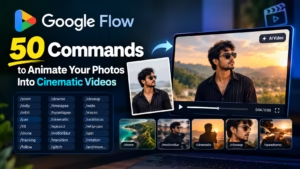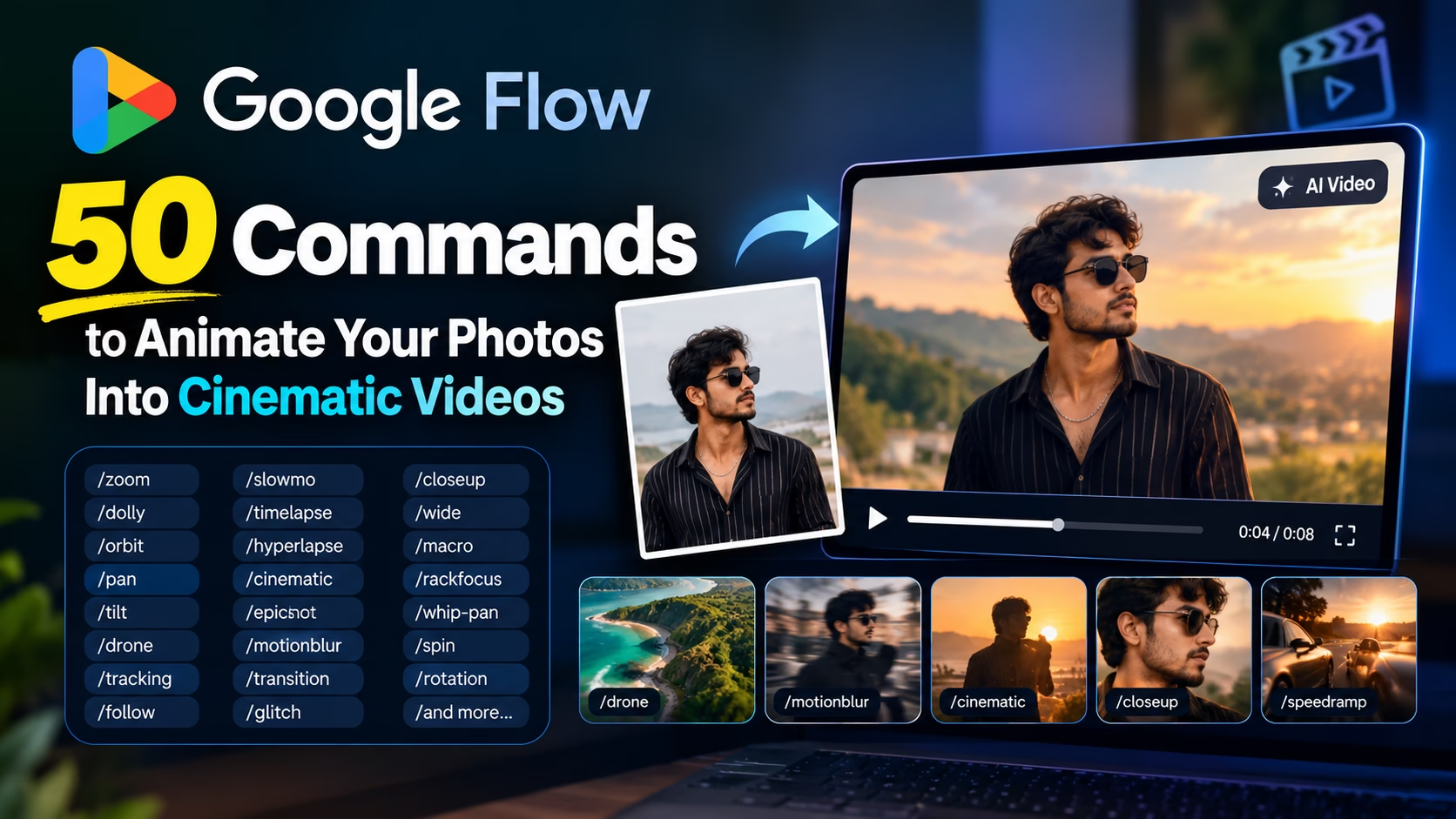
Want to turn your ordinary photos into engaging AI videos using Google Flow? Google Flow Commands can help you experiment with different camera movements, perspectives, cinematic effects, speed changes, and visual styles when animating an uploaded image.
In this guide, we have collected 50 Google Flow Commands that you can try with your photos. These include commands for zooming, dolly movements, orbit shots, drone movements, tracking, slow motion, focus changes, transitions, glitch effects, and cinematic shots.
Whether you are creating Instagram Reels, YouTube Shorts, cinematic portraits, travel visuals, or creative AI videos, these Google Flow Commands can give you different ideas for controlling the movement and style of your generated video.
Note: The
/commandnames in this article are presented as prompt-style shortcuts for experimentation. Google Flow’s official documentation focuses on natural-language prompting and built-in camera/video controls rather than publishing these 50 slash commands as a fixed official command list.
How to Use Google Flow Commands With Your Photo
Using Google Flow Commands with an uploaded photo is simple. Google Flow supports animating images and creating videos using prompts, ingredients, frames, and other visual references.
Step 1: Open Google Flow
Open the official Google Flow website and sign in with your supported Google account.
Official Google Flow:
Google currently requires users to meet its age, region, and subscription requirements to access Flow. Availability can vary by location and plan.
Step 2: Create a Project
Create a new project or open an existing project in Google Flow.
Step 3: Upload Your Photo
Add the photo you want to animate to your prompt. Google Flow allows visual references and ingredients to be added from your device or from assets already saved in your project.
For the best results, Google recommends using clean subject or product references, preferably with a plain or segmented background.
Step 4: Select Video Generation
Choose the Video generation option and select the available model and video settings.
Google Flow lets you select options such as aspect ratio, number of outputs, model, and generation length, although the available choices can vary by model and account.
Step 5: Add Your Google Flow Command
Now enter one of the Google Flow Commands from this article.
For example:
/zoom
Then describe what you want the camera to do.
Step 6: Generate the Video
Generate the video and check the result. If the movement is not what you expected, adjust the natural-language description and generate another version.
50 Google Flow Commands
1. /zoom
Use this command to create a smooth zoom effect toward the main subject. It is useful for making a static photo feel more dynamic and focused.
2. /zoomout
Use this command to gradually move the view away from the subject and reveal more of the surrounding environment.
3. /zoomin
Use this command when you want to bring the camera closer to the main subject, especially for portraits and face-focused shots.
4. /dolly
Use this command to create a cinematic camera movement toward or away from the subject while maintaining a natural perspective.
5. /dollyin
Use this command for a smooth forward camera movement toward the subject. It can create a more immersive cinematic feeling.
6. /dollyout
Use this command to move the camera backward from the subject and gradually reveal more of the scene.
7. /orbit
Use this command to create a camera movement around the subject while keeping the subject as the main focus.
8. /orbit360
Use this command to create a complete 360-degree camera movement around the subject for a dramatic rotating perspective.
9. /pan
Use this command for horizontal camera movement from one side of the scene to the other.
10. /tilt
Use this command for vertical camera movement, such as moving the view upward toward the sky or downward toward the ground.
11. /truck
Use this command to create sideways camera movement while keeping the main subject within the frame.
12. /pedestal
Use this command for vertical camera movement where the camera rises or lowers while maintaining its general orientation.
13. /crane
Use this command to create a dramatic rising or descending camera movement, similar to a cinematic crane shot.

14. /drone
Use this command to create an aerial-style camera movement that gives the scene a wider cinematic perspective.
15. /dronefly
Use this command to create a flying-camera movement that travels through or above the environment like a cinematic drone.
16. /droneorbit
Use this command for an elevated camera movement that circles around the subject from an aerial perspective.
17. /aerial
Use this command to create a high-angle or aerial perspective that shows more of the surrounding environment.
18. /fpv
Use this command to create a first-person flying-camera style with an immersive movement through the scene.
19. /fpvdrone
Use this command to create a dynamic FPV drone-style camera movement with a fast and immersive perspective.
20. /tracking
Use this command when you want the camera to follow the main subject as the subject moves through the scene.
21. /follow
Use this command to create a camera movement that follows the subject, such as following them from behind.
22. /handheld
Use this command to create a natural handheld-camera appearance with subtle movement instead of perfectly stabilized footage.
23. /steadicam
Use this command for smooth stabilized camera movement that can give the video a professional cinematic tracking-shot appearance.
24. /slowmo
Use this command to create a slow-motion style, making the movement appear more dramatic and visually detailed.
25. /timelapse
Use this command to create a time-lapse style where gradual changes in the scene appear to happen much faster.
26. /hyperlapse
Use this command to create a more dynamic and fast-moving time-lapse-style camera effect.
27. /speedramp
Use this command to create changes in movement speed, such as starting slowly and then accelerating.
28. /motionblur
Use this command to add a motion-blur appearance to moving elements while keeping the main subject visually clear.
29. /shakycam
Use this command to create intentional camera shake for a more intense, energetic, or handheld action-shot feeling.
30. /pov
Use this command to create a point-of-view perspective that makes the viewer feel as though they are inside the scene.
31. /firstperson
Use this command to present the scene from a first-person perspective, as if the viewer is seeing the action through the character’s eyes.
32. /thirdperson
Use this command to create an external third-person perspective where the character remains visible within the scene.
33. /closeup
Use this command to create a close-up composition that focuses attention on the subject’s face or important details.
34. /wide
Use this command to create a wide shot that shows both the main subject and more of the surrounding environment.
35. /macro
Use this command to create an extreme close-up view that emphasizes small details and textures.
36. /rackfocus
Use this command to create a focus transition from one part of the scene to another, such as moving focus from the foreground to the background.
37. /focuspull
Use this command to create a deliberate cinematic focus shift between the subject and another area of the scene.
38. /whip
Use this command to create a rapid camera movement with an energetic visual feeling.
39. /whip-pan
Use this command for a fast horizontal camera movement that creates a dynamic whip-pan effect.
40. /spin
Use this command to create a spinning camera movement around the subject or within the scene.
41. /rotation
Use this command to create a controlled rotational camera movement while keeping the main subject visually consistent.
42. /bullet-time
Use this command to create a dramatic frozen-time style where the subject appears nearly frozen while the camera moves.
43. /freeze
Use this command to create a frozen or nearly frozen moment while maintaining subtle cinematic movement around the subject.
44. /loop
Use this command when you want the generated movement to feel suitable for repeating continuously, with the ending connecting naturally to the beginning.
45. /reverse
Use this command to create a reverse-motion effect where the action appears to happen backward.
46. /morph
Use this command to create a transformation between different visual states, making one appearance gradually change into another.
47. /transition
Use this command to create a visual transition from the current scene into another visual state.
48. /glitch
Use this command to create a digital glitch-style visual effect that can give the video a futuristic or experimental appearance.
49. /cinematic
Use this command to give the generated video an overall cinematic style with dramatic composition, lighting, depth, and film-like visuals.
50. /epicshot
Use this command to create a dramatic and powerful cinematic shot with a large-scale visual feeling.
Tips for Using Google Flow Commands
1. Start With a Clear Photo
Use a sharp and well-lit image with the main subject clearly visible. A clean reference image can make it easier to maintain the important visual details.
2. Use One Command at a Time
When testing Google Flow Commands, start with one command instead of adding many different movements at once. This makes it easier to understand the effect of each instruction.
3. Describe the Camera Movement
Don’t depend only on the command name. Explain how you want the camera to move.
For example, with /orbit, describe whether you want the camera to slowly move around the subject or create a more dramatic circular movement.
4. Keep Your Instructions Consistent
Your written prompt should complement the uploaded image instead of contradicting it. Google specifically recommends avoiding conflicting guidance between your text prompt and visual references.
5. Preserve the Subject
For portrait photos, you can add an instruction such as:
Preserve the subject’s facial identity, facial structure, hairstyle, clothing, and overall appearance.
This can help communicate which details should remain consistent.
6. Try Different Camera Movements
The same image can look completely different when you experiment with /zoom, /orbit, /dolly, /drone, /tracking, /closeup, and other Google Flow Commands.
7. Use Clean Reference Images
If you are using an image as an ingredient or visual reference, Google recommends clean subject or product references on a plain or segmented background for better results.
8. Experiment With Different Settings
Depending on the model and account, Google Flow provides options such as orientation, aspect ratio, generation length, and number of outputs. Try different settings to find the result that works best for your project.
9. Use Start and End Frames When Needed
Google Flow also supports start and end frames. You can provide beginning and ending images and describe the action or transition that should happen between them.
This can be particularly useful when you want more control over how one visual state changes into another.
10. Generate Multiple Versions
Don’t stop after the first generation. If the camera movement isn’t right, modify the description and try again. Small changes in your prompt can produce noticeably different results.
Final Thoughts
These 50 Google Flow Commands provide a useful starting point for experimenting with AI photo-to-video generation. From simple movements such as /zoom, /pan, and /dolly to aerial shots, tracking, slow motion, focus effects, transitions, and cinematic styles, each command can help you explore a different visual direction.
For better results, start with a clear photo, use one command at a time, and describe the desired movement in natural language. Google Flow’s official guidance emphasizes detailed prompts and clear visual references, so combining a command-style instruction with a specific description can make your experiments easier to control.
If a particular /command does not produce the expected result, simply describe the same camera movement or effect directly in natural language. This is important because these 50 Google Flow Commands are being used here as convenient prompt-style shortcuts, not as an officially documented slash-command language.
Frequently Asked Questions About Google Flow Commands
What are Google Flow Commands?
Google Flow Commands in this article are command-style prompt shortcuts designed to help users describe camera movements, perspectives, effects, and cinematic styles when working with images and videos in Google Flow.
Can I use Google Flow Commands with my own photos?
Yes. Google Flow supports using uploaded images as visual references or ingredients for video generation, and its app also provides an option to animate a photo.
Can I use Google Flow Commands for portrait photos?
Yes. Commands such as /zoom, /zoomin, /orbit, /closeup, /slowmo, and /cinematic can be used as starting points for portrait-video experiments.
Can I use these commands for Instagram Reels?
Yes. You can experiment with different camera movements and video orientations and then use the generated clips in your social-media workflow.
Can I use multiple Google Flow Commands together?
You can experiment with multiple instructions, but it is generally easier to start with one command and a clear natural-language description. This makes it easier to understand what caused a particular result.
Does Google Flow officially support all 50 slash commands?
Google’s current official documentation does not publish these 50 /commands as a fixed official slash-command system. Google Flow officially supports natural-language prompts, visual references, frames, and various video/camera features.
Therefore, treat the commands in this article as prompt-style shortcuts and experimentation ideas, rather than guaranteed built-in commands.
Can I animate a still photo in Google Flow?
Yes. Google Flow supports animating images and creating video clips from images and prompts. On Android, Google specifically provides an Animate photo option for animating a photo from your device.
Can I create transitions between two images?
Yes. Google Flow supports start and end frames, allowing you to provide beginning and ending images and describe the transition or action between them.